

Key Highlights
- Enhance productivity with a top-tier office printer for seamless document workflows.
- This guide explores key factors to consider when choosing between inkjet and laser printers.
- Discover the best models tailored for various business sizes and printing needs in 2024.
- Learn valuable maintenance tips and troubleshooting advice to extend the life of your printer.
- Explore eco-friendly printing solutions and cost-saving strategies for your business.
Introduction
In today’s fast-paced business world, a reliable office printer is not just a convenience, it’s a backbone of productivity. Did you know that businesses still print over 400 billion pages annually worldwide despite the rise of digital workflows? That’s huge! And in 2025, the demand for smarter, faster, and more cost-efficient commercial printers continues to rise. Whether you’re running a small startup or managing a large corporate office, choosing the right commercial printer can make or break your workflow. This guide will take you through the best office commercial printers of 2025, highlight their features, compare models, and help you decide which one is the best fit for your workplace.
Choosing the Right Office Commercial Printer for Your Business Needs
Choosing the right printer for your office is very important to keep things running smoothly and stay productive. There are many options to choose from, like inkjet and laser printers plus all-in-one models. You need to think carefully to find the perfect fit for your business needs.
Start by checking how much you will print. A busy office might need a strong laser printer. A smaller team might do better with an inkjet printer, especially if they primarily print black and white documents. Also, take note of what you specifically need, such as color printing, double-sided printing, and wireless connectivity. This will help you connect your new printer to your current IT setup.
Factors to Consider Before Buying the Best Office Commercial Printer
Before investing in an office printer, it’s important to look beyond just the price tag. A commercial printer should align with your business’s printing needs and long-term goals. Here are the key factors to evaluate for best office commercial printer:
- Print Quality & Resolution – Check the maximum DPI and text sharpness. If your business deals with client-facing documents, proposals, or marketing materials, high-resolution output is a must.
- Printing Speed (PPM) – Measured in pages per minute, this determines how quickly your office can handle bulk jobs. High-speed printers save time in busy environments.
- Type of Printing Needed – Decide between monochrome (great for text-heavy businesses) and color (essential for marketing, design, or client presentations).
- Duplex Printing – Automatic double-sided printing saves paper, reduces costs, and is eco-friendly.
- Connectivity Options – Look for Wi-Fi, Ethernet, Bluetooth, mobile printing apps, and cloud connectivity to support multiple devices and remote teams.
- Paper Handling & Scanning – Features like multiple paper trays, a flatbed scanner, and an automatic document feeder (ADF) improve flexibility and efficiency.
- Energy Efficiency – An ENERGY STAR® rating helps lower power consumption, reducing costs and your environmental footprint.
- Ease of Use – A touchscreen display, intuitive controls, and user authentication features make the printer more accessible and reduce staff training time.
By weighing these factors carefully, you’ll ensure that the printer you choose not only meets your immediate office needs but also supports future growth.
Categories of Office Commercial Printers
Before reviewing the top picks, it’s important to know the main categories:
- Laser vs. Inkjet vs. LED Printers – Laser and LED are best for high-volume, fast-paced offices; inkjet shines in color detail.
- Multifunction vs. Single-Purpose – Multifunction printers (MFPs) handle printing, scanning, faxing, and copying; single-purpose devices are simpler and often more durable.
- Color vs. Monochrome – Color printers are vital for marketing and client-facing businesses, while monochrome is ideal for text-heavy industries.
- Wide & Large Format – Perfect for design firms, architecture offices, or signage printing.
- Departmental vs. Production Printers – Smaller offices might only need departmental machines, but large-scale enterprises often invest in production printers.
Inkjet vs. Laser: Which Is Best for Your Office?
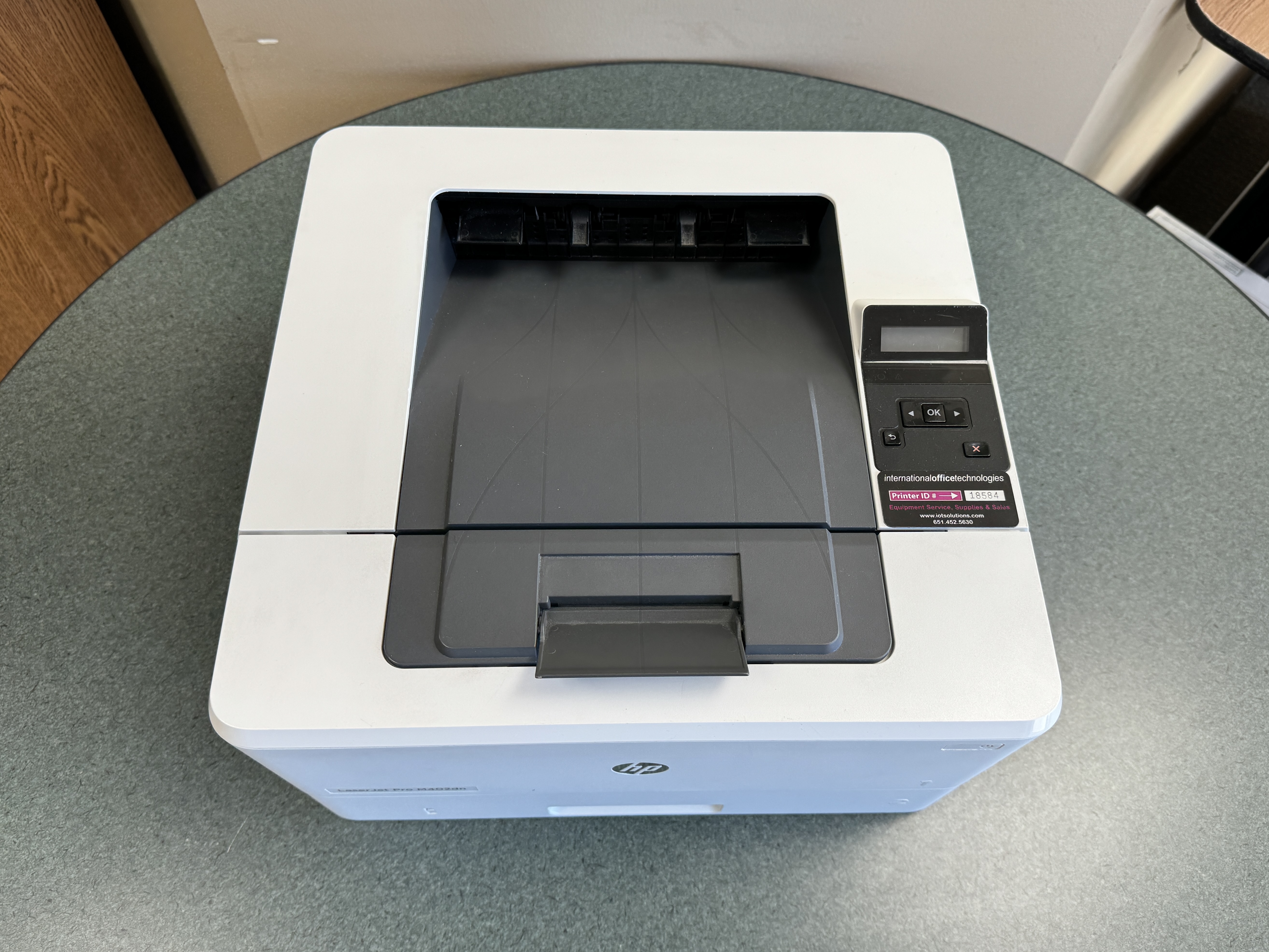
Inkjet printers are great for printing high-quality photos. They also have low initial costs. On the other hand, laser printers work well for fast printing and can handle large jobs efficiently over time. Think about what your office needs, like how much you print and the quality you want, to find the best option for you.
Top Models Reviewed — Best Office Printers for Businesses in 2025 (Including Minneapolis–St. Paul Picks)
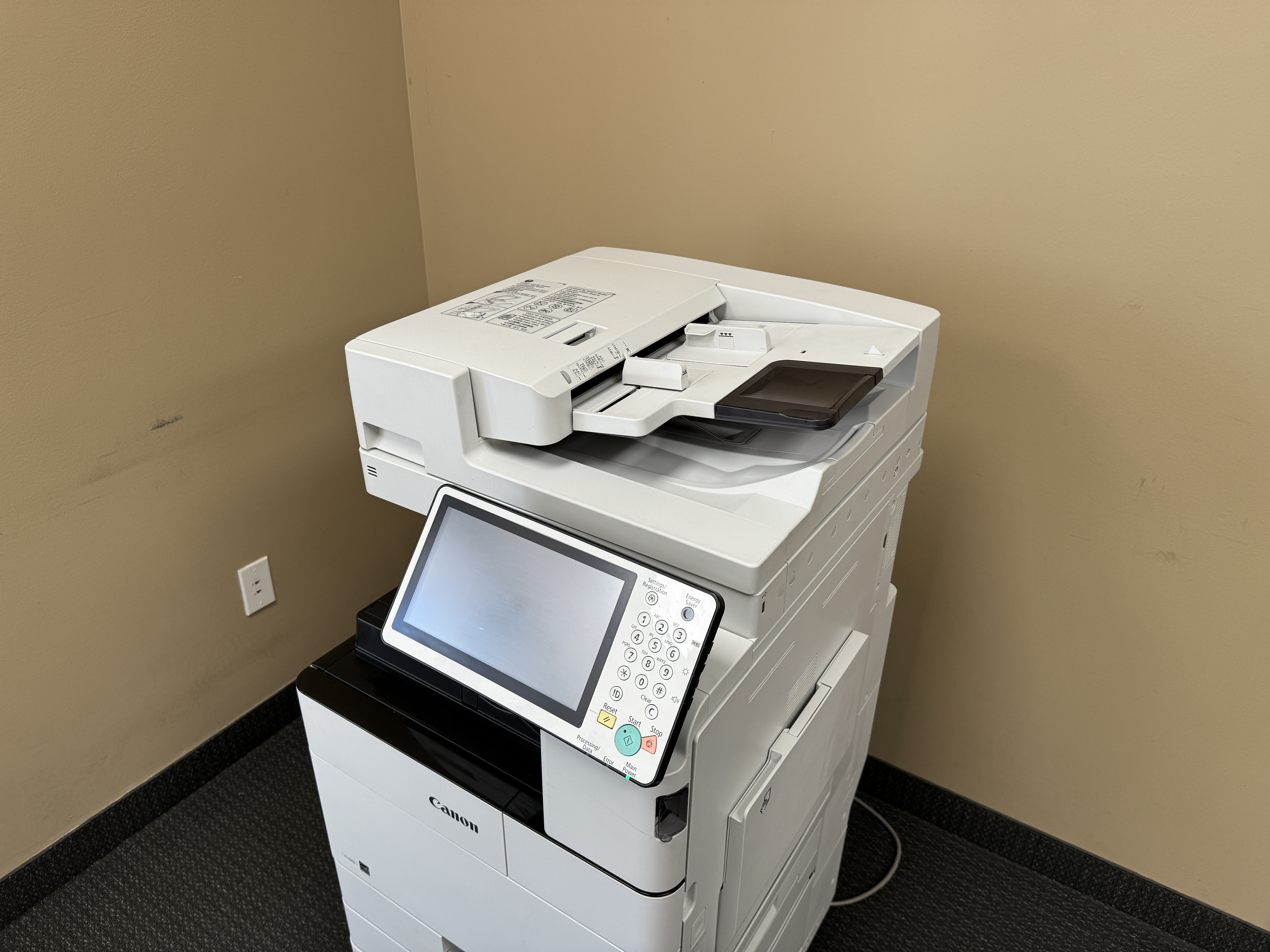
Finding the right office printer in 2025 can feel overwhelming, especially with dozens of brands and models competing for attention. To make the process easier, we’ve reviewed the standout performers of the year, considering performance, reliability, features, and cost efficiency.
Whether you’re a small business in Minneapolis–St. Paul looking for an all-in-one inkjet printer or a large enterprise needing a high-volume laser machine, these top-rated best office commercial printer models will help you make the right investment.
1. HP LaserJet Enterprise M611dn
- Best for: Large teams needing high-volume monochrome printing.
- Key Features: 65 ppm speed, 275k monthly duty cycle, secure print release.
- Pros: Super-fast, reliable, low cost per page.
- Cons: Monochrome only, higher upfront cost.
- 📌 Local Fit: Ideal for Minneapolis corporate offices with heavy document printing demands.
2. Canon imageRUNNER ADVANCE DX C5870i
- Best for: Enterprises needing multifunction capabilities.
- Key Features: 70 ppm, full color, integrated cloud workflow tools.
- Pros: Excellent for scanning, copying, and cloud integration.
- Cons: Bulky, requires professional installation.
- 📌 Local Fit: Perfect for businesses in St. Paul that require multifunction efficiency in one powerful device.
3. Brother MFC-L9670CDN
- Best for: Mid-sized offices needing affordable color prints.
- Key Features: 42 ppm, duplex scanning, enterprise-level security.
- Pros: Cost-effective, user-friendly, compact for a color MFP.
- Cons: Slightly slower than high-end enterprise models.
- 📌 Local Fit: A solid choice for small to medium Minneapolis businesses that want color printing at a fair price without sacrificing reliability.
4. Xerox VersaLink C7100 Series
- Best for: Creative teams needing high-quality graphics.
- Key Features: Outstanding color accuracy, touchscreen interface, modular upgrades.
- Pros: Vibrant colors, strong workflow customization.
- Cons: Higher toner costs.
- 📌 Local Fit: Especially popular among marketing agencies, design studios, and print shops in Minneapolis–St. Paul.
5. Epson WorkForce Enterprise WF-M21000
- Best for: Eco-conscious offices.
- Key Features: 100 ppm inkjet, lower energy usage, minimal waste.
- Pros: Extremely energy efficient, lightning-fast printing.
- Cons: Large footprint.
- 📌 Local Fit: A great pick for eco-minded companies in Minnesota that want to reduce energy bills and environmental impact.
Local Recommendation Highlights
- Best All-in-One Inkjet Printer for SMBs: Brother MFC or HP OfficeJet Pro series (ideal for smaller businesses in the Twin Cities).
- Best Laser Printer for High-Volume Printing: HP LaserJet Enterprise or Konica Minolta Bizhub (perfect for enterprises with heavy print loads).
By combining national best-sellers with local insights, this list ensures Minneapolis–St. Paul businesses have the most reliable and cost-effective printing solutions available in 2025.
Top Office Printer Models of 2025 Compared
| Model | Key Specs (Speed / Duty Cycle / Resolution) | Pros | Cons | Best For / Local Fit (Minneapolis–St. Paul) |
|---|---|---|---|---|
| HP LaserJet Enterprise M611dn | 65 ppm (monochrome); up to 1200 × 1200 dpi; duplex printing | Very fast; reliable; low cost per page | Monochrome only; higher upfront cost | Offices in MSP with large document volumes, billing, legal docs |
| Canon imageRUNNER ADVANCE DX C5870i | Up to 70 ppm (color & B/W); 5 GB RAM; 1200 × 1200 dpi; ~6,350 sheets capacity | All-in-one features, color output, powerful scanning | Large size; requires professional setup | Enterprises needing multifunction workflows, shared departmental printing |
| Brother MFC-L9670CDN | 42 ppm; color laser; 2 GB memory; 100-sheet ADF | Cost-effective color MFP, enterprise security, user friendly | Slower vs high-end printers | Mid-sized offices in MSP wanting color & multifunction without huge investment |
| Xerox VersaLink C7100 Series | Up to 1200 × 2400 dpi; duty cycle ~129,000 images/month; 8.8s first page | Excellent color output; modular upgrades; strong security & workflow features | Toner cost may be higher; heavier device | Creative firms, marketing agencies, high-quality graphics needed in MSP |
| Epson WorkForce Enterprise WF-M21000 | 100 ppm (inkjet); energy-efficient; low waste design | Great eco-credentials, power savings, speed | Large footprint; potentially higher initial cost | Eco-minded businesses, firms focused on reducing power bills / sustainability |
Eco-Friendly Printing Solutions
In today’s business world, sustainability matters more than ever. Offices rely on printing for daily tasks, but traditional printing can waste paper, consume excess energy, and raise costs. The good news? You can adopt eco-friendly printing solutions that reduce your environmental impact while saving money in the long run.
Sustainable Printers for the Environmentally Conscious Office
If your business values sustainability, investing in the right printer is essential. Look for models that include:
- Energy Star Certification for lower energy consumption.
- Automatic duplex printing to cut paper usage in half.
- EcoTank Pro systems or refillable ink tanks to reduce cartridge waste.
- Duplex scanning for digital file management, minimizing the need for extra copies.
- Low-emission technology that reduces your office’s carbon footprint.
Not only are sustainable printers better for the planet, but they can also improve efficiency and reduce long-term operational costs.
How to Reduce Your Carbon Footprint with Efficient Printing Practices
Adopting smarter printing habits is just as important as choosing the right printer. Here are practical steps your office can take:
- Enable duplex printing by default to cut paper use.
- Choose black-and-white printing for everyday documents to save color ink.
- Pick printers with ink subscription or instant ink services to reduce packaging waste.
- Maintain and update printer firmware to keep devices running efficiently.
- Encourage digital workflows (e.g., PDFs, e-signatures) to reduce unnecessary printing.
By combining eco-friendly printers with smarter practices, your business can significantly reduce waste, lower costs, and support a greener future.
| Model | Eco Features | Pros | Cons / Things to Watch | Best Fit Use Cases |
|---|---|---|---|---|
| Epson EcoTank ET-15000 | Cartridge-free refillable ink tanks; ENERGY STAR qualified; zero cartridge waste; can print up to 2 years on included ink set (each bottle set equivalent to ~80 cartridges) (Epson) | Very low running cost, minimal waste, ideal for color output, large format capability (up to 13″×19″) | Larger footprint, higher upfront cost | Creative offices, marketing, art/design firms |
| Epson EcoTank (other models / line) | Uses large ink tanks (reducing plastic waste), ink bottles instead of cartridges, power-efficient inkjet tech that doesn’t require fuser heat. (corporate.epson) | Lower energy use vs lasers, less frequent supply replacement, good for moderate to heavy usage | For very heavy document volumes, speed may lag compared to high-end lasers | Small / medium offices that print color, documents, graphics |
| HP Neverstop Laser (e.g. MFP 1202nw / 1001nw line) | ENERGY STAR certified, low standby / ready power consumption, reloadable toner system (reduces cartridge waste) (ENERGY STAR) | Strong text printing, durability, lower waste via toner reload, familiar laser reliability | Monochrome only (for many models), might not handle very heavy color graphics | Offices that mainly print documents, contracts, invoices, forms |
Best Office Printer Buying Guide: Matching Needs to Printers
- Small Teams (1–10 users): Compact MFPs like Brother MFC series.
- Mid-Sized Offices (10–50 users): Balanced machines like Canon or HP Enterprise.
- Large Corporations (50+ users): High-speed production printers like Epson WF-M21000.
- Design/Marketing Agencies: Xerox VersaLink or Canon for vibrant, accurate colors.
- Eco-Focused Businesses: Epson inkjets for low power usage.
Maximizing Your Printer’s Efficiency and Longevity
Your office printer is more than just a tool—it’s an investment. To get the best performance and extend its lifespan, consistent care and smart usage are key. Regular maintenance not only prevents costly repairs but also ensures your printer continues delivering high-quality results day after day.
Even simple tasks like routine cleaning and basic troubleshooting can make a noticeable difference. By dedicating a little time to upkeep, you’ll boost efficiency, minimize downtime, and keep your office running smoothly.
Maintenance Tips for Peak Performance
Keeping your printer in top shape doesn’t have to be complicated. These best practices will help you maintain speed, quality, and reliability:
- Clean regularly – Wipe down the exterior and carefully clean the interior to prevent dust buildup.
- Check for jams or debris – Remove any obstructions that could cause paper feed issues.
- Calibrate settings & update firmware – Ensure color accuracy, print alignment, and improved functionality.
- Use quality supplies – Stick to recommended ink, toner, and paper to avoid clogs or poor output.
- Choose the right environment – Keep the printer in a dust-free, temperature-controlled space for optimal performance.
When these steps become part of your routine, your printer will last longer and perform consistently.
Troubleshooting Common Printer Issues
Even reliable printers can run into problems. Knowing how to troubleshoot common issues can save you time and frustration:
- Paper jams – Open access panels and gently remove stuck sheets.
- Connectivity issues – Check Wi-Fi, network settings, and cables.
- Poor print quality – Clean printheads or toner cartridges and align settings.
- Driver or software problems – Update printer drivers regularly to fix compatibility issues.
- Low ink/toner alerts – Keep spare cartridges or refill kits on hand.
If problems persist, consult the user manual or contact technical support. Proactive troubleshooting ensures minor issues don’t become major setbacks.
✨ Pro Tip: Pairing regular maintenance with timely troubleshooting is the best way to maximize your printer’s efficiency, save money on repairs, and keep your office workflows running without interruption.
Cutting-Edge Technology in Office Printers
The world of office printing is evolving rapidly. Manufacturers are pushing boundaries, introducing smarter, faster, and more sustainable solutions that go far beyond basic printing. Today’s commercial printers are built with advanced connectivity, eco-friendly components, and automation that streamline workflows and boost productivity.
Let’s explore the latest innovations transforming the way businesses print today—and the future trends that will redefine the industry in the years ahead.
Innovations That Are Changing the Way We Print
Modern printers are no longer just output machines—they’re productivity hubs. Some of the key innovations driving change include:
- Wireless & Cloud Printing – Seamless access from laptops, tablets, and smartphones, no cables required.
- Eco-Friendly Features – ENERGY STAR® certifications, automatic duplex printing, and ink/toner-saving modes.
- Smart Efficiency – Faster printing speeds, improved color accuracy, and sharper text quality.
- User-Centered Design – Touchscreen panels, mobile printing apps, and voice-enabled controls for easier use.
- Workflow Enhancements – Automatic document feeders, duplex scanning, and advanced security protocols for enterprise use.
Industry leaders like HP, Epson, Canon, and Brother are setting new benchmarks by blending performance with sustainability and digital integration.
Future Trends in Commercial Printing Technology
Looking ahead, the office printer will continue to evolve into a more intelligent, eco-conscious, and versatile machine. Here are the trends shaping the future:
- AI-Powered Printing – Automated adjustments for print quality, error detection, and predictive maintenance.
- Voice Command Integration – Hands-free printing with smart assistants like Alexa or Google Assistant.
- Cloud-First Workflows – Enhanced collaboration with secure cloud storage and remote print management.
- Sustainability at Scale – More recycled materials, energy-efficient designs, and zero-waste ink/toner systems.
- 3D Printing in Business – Expanding beyond prototyping into customized office tools, parts, and marketing materials.
Staying updated with these trends ensures your business is ready for the next wave of office technology—and helps you invest in printers that can scale with your needs.
Budgeting for Your Office Printer
Buying a printer isn’t just about the sticker price—it’s about the long-term investment. Beyond the upfront cost, businesses must factor in ink or toner expenses, maintenance, energy usage, and the printer’s expected lifespan.
Another key consideration is leasing vs. owning. Leasing can reduce initial costs and provide predictable monthly payments, while ownership may be more cost-effective in the long run. If you’re exploring flexible leasing solutions, check out affordable printer leasing companies near me for options that can fit your business needs.
By carefully weighing these factors, you can choose a printer solution that aligns with both your operational needs and your budget.
Cost Analysis: Printer Ownership vs. Leasing
Both ownership and leasing have their advantages depending on your business situation:
Owning a Printer
- Higher upfront cost but potentially lower long-term expenses.
- You are responsible for maintenance, repairs, and supply management.
- Ideal if you plan to keep the printer for 5+ years and have steady print volumes.
Leasing a Printer
- Lower upfront cost with fixed monthly payments.
- Often includes maintenance and supply services in the contract.
- Flexible for businesses that expect growth or technology upgrades.
- Best suited for short-term or evolving needs where flexibility matters.
👉 Pro Tip: Calculate the total cost of ownership (TCO) over the printer’s expected lifespan to make an informed choice.
How to Save Money on Printing Costs
You don’t have to sacrifice quality to cut expenses. Implementing smart print practices can significantly lower your monthly costs:
- Enable duplex printing – Print on both sides to cut paper usage in half.
- Use draft mode for internal documents – Saves ink while keeping text readable.
- Limit color printing – Reserve color for presentations, proposals, or marketing materials.
- Choose high-yield cartridges or refillable ink tanks – Reduce cost per page over time.
- Track usage with print management software – Identify wasteful habits and set print quotas if needed.
By combining the right purchasing strategy with cost-saving print practices, your office can maximize efficiency and stay within budget without compromising quality.
Security Features in Today’s Office Printers
In today’s connected workplace, data security is non-negotiable. Yet, many businesses overlook printers as part of their cybersecurity strategy. Modern office printers are no longer just output devices—they’re networked machines that can be entry points for hackers if not properly secured.
The good news? Leading printer manufacturers have introduced advanced security features to safeguard sensitive business information, restrict unauthorized access, and ensure compliance with data protection regulations.
Protecting Your Business Information in Print Jobs
Every print job has the potential to expose confidential data if it’s not properly protected. Here are ways businesses can reduce risks:
- Secure Print Release – Users enter a PIN or swipe an access card at the printer to release their documents. This prevents sensitive files from sitting unattended on the tray.
- Network Security Settings – Configure printers with secure network protocols (e.g., HTTPS, IPsec) to protect documents in transit.
- User Authentication – Limit access by requiring employees to log in before printing. This ensures only authorized staff use the device.
- Activity Monitoring & Audit Trails – Track print usage to detect unusual activity and improve accountability.
By combining these practices, businesses can prevent accidental leaks and block malicious attempts to access private data.
Encryption and Secure Printing Options
Encryption and secure printing technologies are the foundation of printer security.
- Data Encryption – Encodes information as it moves between a computer and the printer, ensuring that intercepted data is unreadable.
- Hard Drive Encryption – Protects sensitive files temporarily stored on multifunction printers (MFPs).
- Secure Printing – Holds print jobs in memory until the user authenticates at the device, keeping confidential documents safe.
- Automatic Data Wiping – Some enterprise models automatically erase cached files to prevent long-term data exposure.
Together, these security layers protect both the integrity and confidentiality of business communications—keeping everything from contracts to employee records safe.
Installation and Networking Solutions
Setting up your office printer correctly is essential for smooth operation, secure connectivity, and maximum productivity. A proper installation ensures your device integrates seamlessly with your IT infrastructure while minimizing downtime and security risks.
Whether you’re opting for a wired Ethernet connection for stability or a wireless setup for flexibility, careful configuration is the key to keeping your workflow running efficiently.
Setting Up Your Office Printer for Network Printing
To get the most out of your office printer, follow these best practices for network setup:
- Choose the Right Connection Type – Use wired Ethernet for speed and reliability, or wireless (Wi-Fi) for flexibility and mobile printing.
- Ensure Compatibility – Confirm that the printer supports your existing network protocols (e.g., TCP/IP, IPv6).
- Enable Secure Printing – Use PIN codes, user authentication, or card readers to prevent unauthorized access.
- Maintain Reliable Connections – Avoid disruptions by ensuring strong Wi-Fi coverage or stable wired connectivity.
- Update Firmware Regularly – Install the latest updates to improve performance, fix bugs, and patch security vulnerabilities.
- Allow Multi-Device Printing – Configure settings so employees can print from laptops, tablets, and smartphones on the same network.
By optimizing your network printing setup, you reduce downtime and keep your office running efficiently.
Tips for Seamless Integration into Your IT Infrastructure
When connecting your office printer to your IT systems, think beyond just printing—it should fit into your security, scalability, and productivity goals:
- ✅ Check Compatibility with Existing Systems – Ensure your printer integrates with your operating systems, cloud services, and business software.
- ✅ Enable Encryption Protocols – Protect sensitive data by using SSL/TLS or IPsec when transmitting print jobs.
- ✅ Plan for Scalability – Choose printers that can handle your growing printing needs as your business expands.
- ✅ Use Centralized Management Tools – Opt for devices that allow IT teams to monitor usage, enforce policies, and troubleshoot remotely.
- ✅ Keep Drivers and Software Updated – Regular updates enhance functionality, security, and device longevity.
A well-integrated printer not only supports day-to-day operations but also strengthens your company’s IT security and workflow efficiency.
Conclusion
The best office commercial printer of 2025 is the one that fits your unique volume, workflow, and budget needs. While HP and Canon dominate high-performance categories, Brother offers cost-effective solutions, Xerox shines for graphics, and Epson leads in eco-efficiency.
Final takeaway: Don’t just buy based on speed—consider the cost per page, long-term maintenance, and workflow compatibility.
👉 Ready to invest in your next office printer? Compare these models, ask for demos, and match them with your office’s daily print demands—you’ll thank yourself in the long run.
Frequently Asked Questions
What Is the Best Printer for a Small Office in Minneapolis-St. Paul?
For small offices in Minneapolis-St. Paul, the best printer should be small but efficient. It should also provide cost-effective printing solutions. Choose models that have wireless connectivity and can deliver high-quality prints to fit your office needs well.
How Can I Choose Between Color and Monochrome Printers?
When deciding between color and monochrome printers, think about what you need for printing. Color printers are great for bright and colorful presentations. On the other hand, monochrome printers are cheaper and work well for documents that are mostly text. Look at what kind of content you have and your budget to pick the best one.
What Are the Most Important Security Features in an Office Printer?
To keep your office printer safe, look for features such as encryption and user authentication. Secure printing options and data protection are also important. These tools help stop unauthorized access and keep sensitive information secure. Use strong security measures to stay protected from possible threats.
How Often Should I Perform Maintenance on My Office Printer?
To keep your office printer working well, try to do maintenance tasks every 1-2 months. Clean the printheads and check for paper jams during this time. Taking care of your printer can help avoid expensive repairs and make sure printing goes smoothly.


